Guide: getting started
Step by step, with screenshots: sign up with a promo code, buy places, install, and connect to your computer for the first time. One place = one computer you control. The computer or phone you connect from needs no place.
1Sign up on the site with a promo code
- Click Sign in at the top → the Sign up tab.
- Enter your email and a password (8 characters or more), then repeat the password.
- Type the promo code you were given into Promo code (optional). It gives a lasting 7% discount on every payment.
- Click Create account.
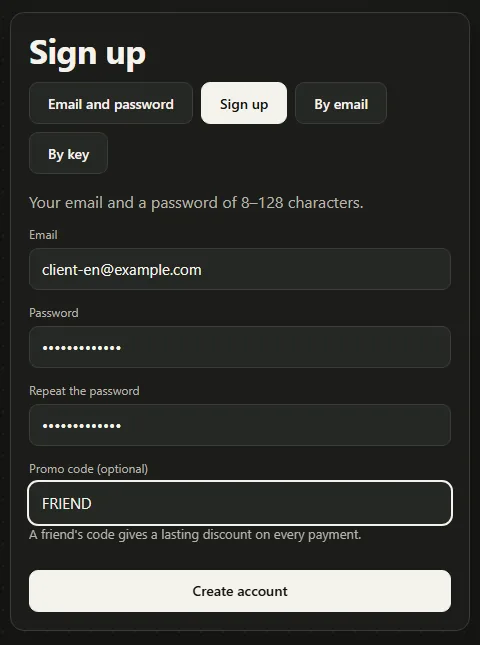
Forgot the promo code? Cabinet → Promo code and cashback → A friend's promo code. It can be done once and only before the first payment.
2Buy places
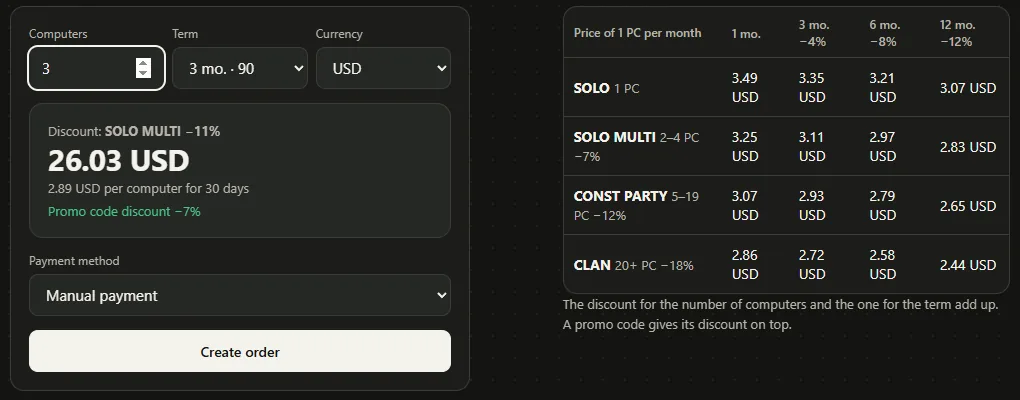
- Cabinet → Buy or renew places.
- Choose how many computers, the term and the currency. The price with every discount shows at once: for the number (2–4 PCs −7%, 5–19 PCs −12%, 20+ PCs −18%), for the term (3 mo. −4%, 6 mo. −8%, 12 mo. −12%) and another −7% for the promo code.
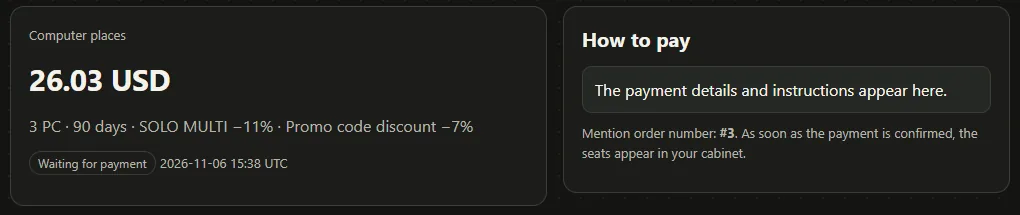
- Choose a payment method → Create order and pay as the order page says, with the order number. To pay in Telegram, choose the payment method “⭐ Telegram Stars”: the price shows in Stars and the invoice comes to the @hidforge_bot chat at once (link Telegram in the cabinet first).
- As soon as the payment is confirmed, the places appear in the cabinet.
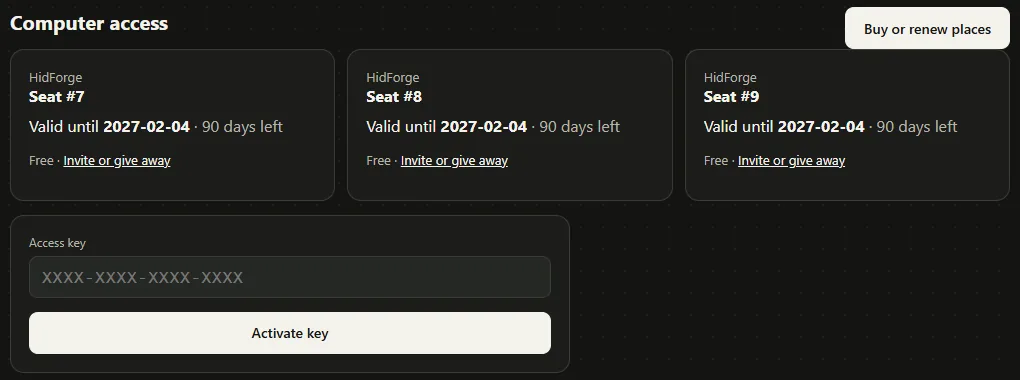
Bought a key on FunPay or GGSel? Open the link from the key, enter your email and a password, and the key is activated in one step. Or: Cabinet → Access key → Activate key. Renewing works the same way: a new purchase extends the places that end first.
3Install HidForge on the computer you will control
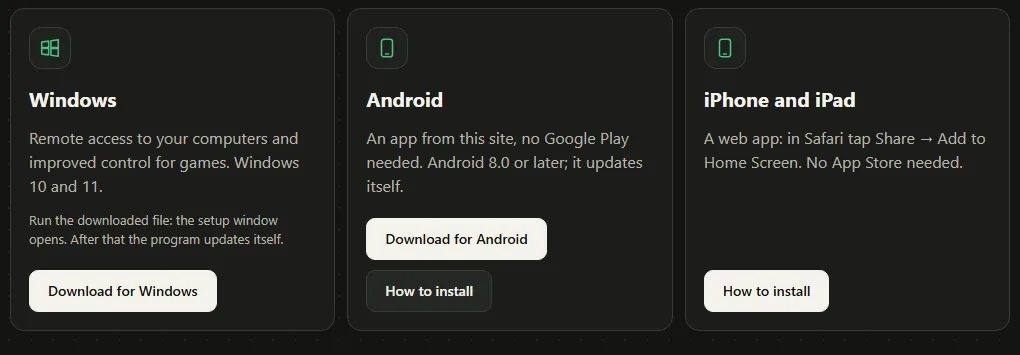
- The Download page → Download for Windows, then run the downloaded file.
- If Windows shows “Windows protected your PC” (unknown publisher), check the file first: it is from hidforge.com and its SHA-256 matches the one on the Download page. Only then — More info → Run anyway. If it differs, do not run it: delete the file and contact support.
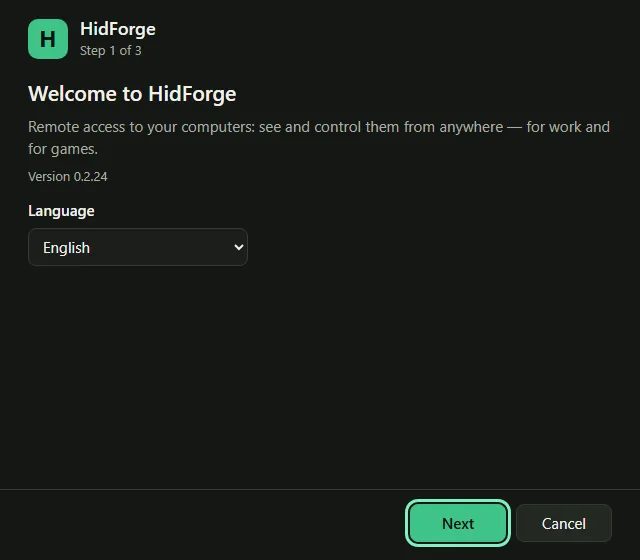
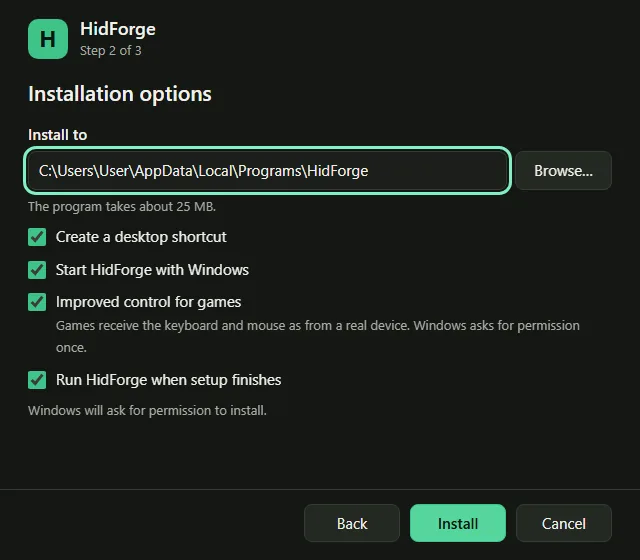
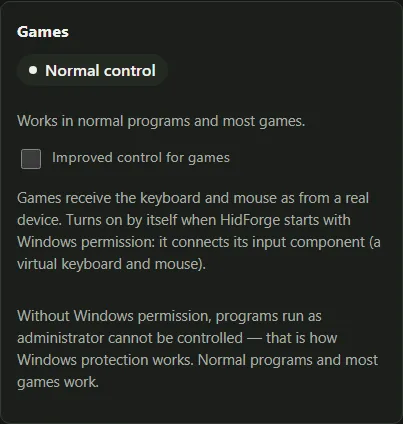
- In the setup window: Next → keep the boxes checked, especially Improved control for games → Install. Windows asks for permission once — agree.
4Sign in and click “This is my computer”
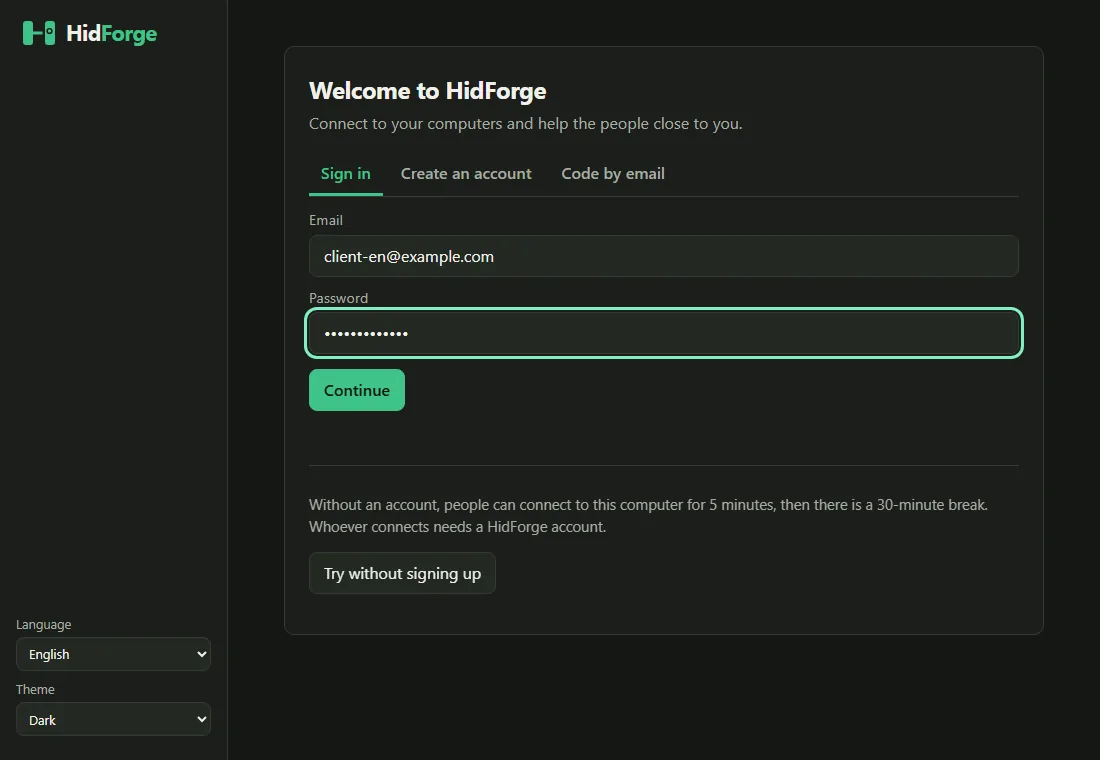
- In the HidForge window, the Sign in tab: the same email and password as on the site → Continue.
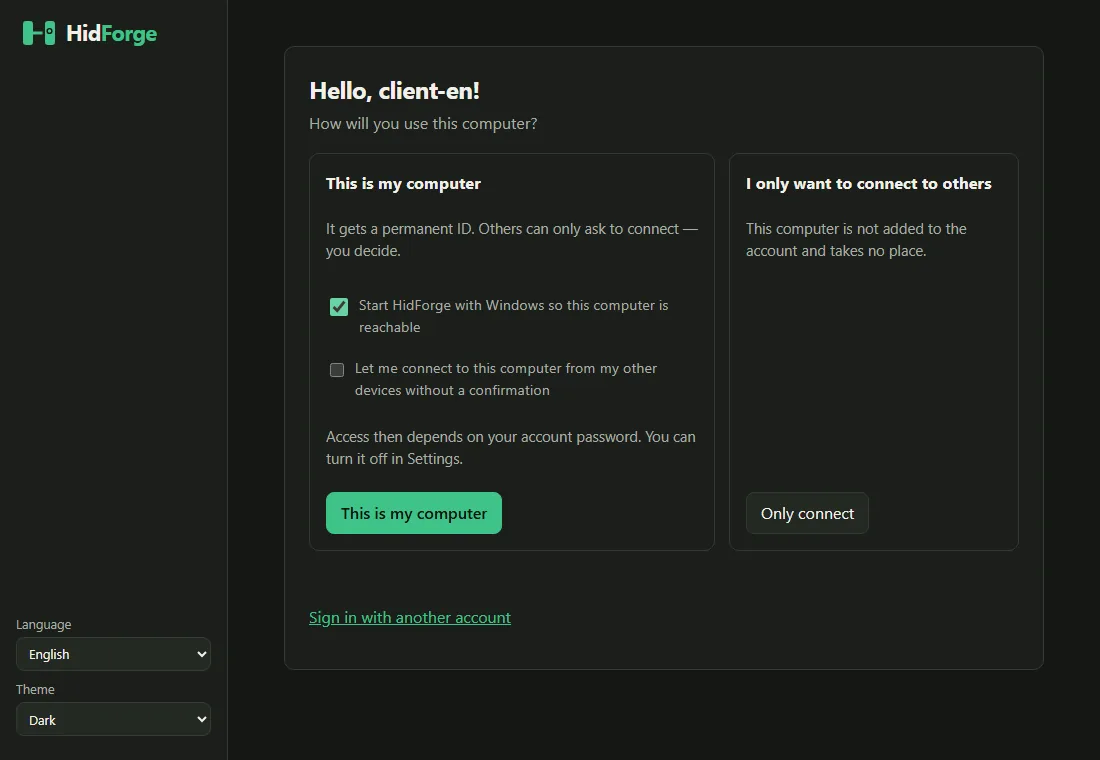
- Click This is my computer. The computer takes one place and gets a permanent ID.
Keep “Start HidForge with Windows” so the computer is always reachable. The second box lets you connect to this PC from your other devices without a confirmation. - Repeat this on every computer you will control: one place each.
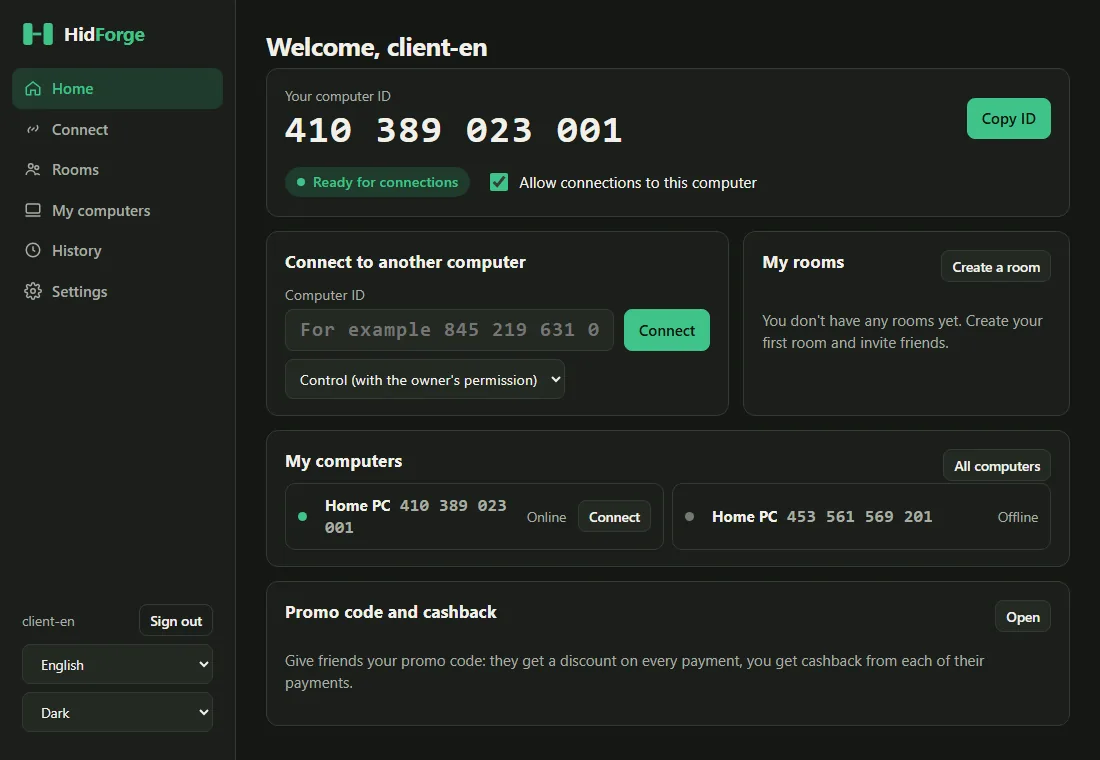
The program says “All places in the account are taken…”? Buy more places (step 2) and click “This is my computer” again.
5Connect to your computer
- From another PC: install HidForge and choose Only connect (it takes no place), or just sign in on the site. From a phone: open the site (the phone apps are still in testing); how to put HidForge on your phone is on the Download page.
- My computers → Connect next to the computer. Or the Connect section → enter the ID.
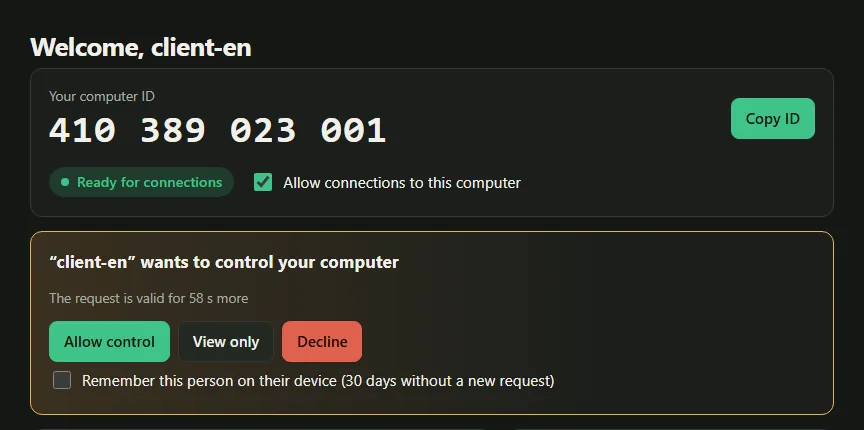
- That computer shows a request: Allow control, View only or Decline. If you allowed yourself to connect without a confirmation, there is no request.
6For games — improved control
The program installs updates by itself while nobody is connected to the computer.
7Share places with your group
- Invite shows an invitation code (works 7 days, for one computer). Send it to the person: they install HidForge, open I have an invitation code in the program window, paste the code and click Add this computer. They don't need your password. The place stays yours: you renew it, and the computer shows in My computers.
- Give away: enter the email of the person's HidForge account and the place becomes theirs for the rest of its term. They get an email (and a Telegram message if they linked the bot) and renew it themselves from then on. A gift cannot be undone.
Only a free place can be given away. If a computer is on it, unlink it in My computers first.
If something does not work, see Getting started or write to us, ideally with a screenshot.